Manual Image Solver
A manual plate solving tool for PixInsight. Manually identify stars on an image to compute and apply a TAN (gnomonic) projection WCS (World Coordinate System).
Overview
When automatic plate solving with astrometry.net or PixInsight’s ImageSolver fails, this tool lets you manually identify stars to obtain a WCS solution.

Features
- Built-in catalog browser: Navigation stars (50 bright stars), Messier objects (M1–M110), and 88 constellation star lists — click a star on the image, then double-click in the catalog to pair quickly
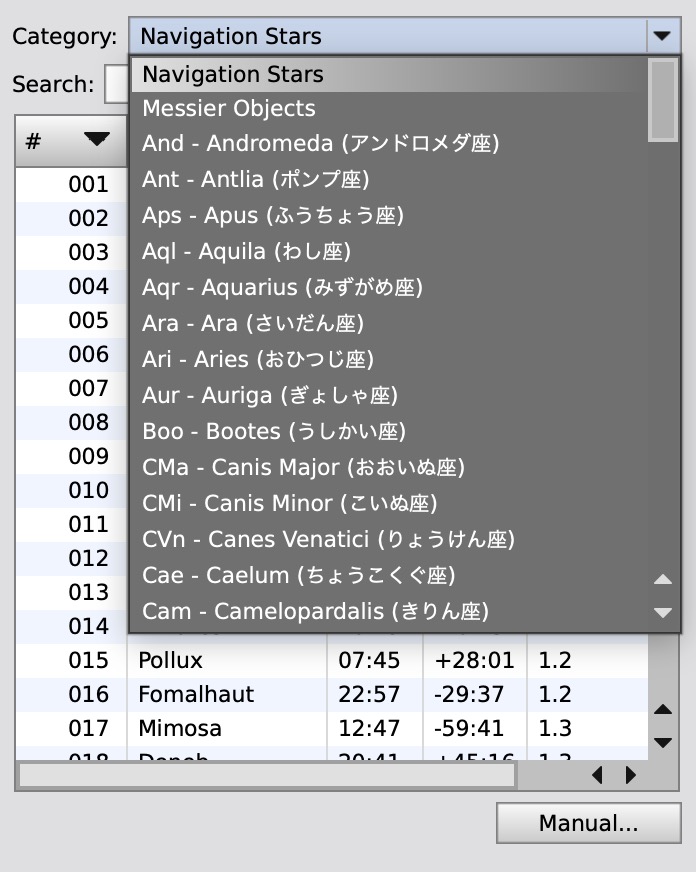
- Japanese constellation names: Constellation names displayed in Japanese in the category dropdown
- Greek letter legend: Bayer designation reference table displayed above the star table
- Intuitive controls: Click to select stars, drag to pan (no mode switching needed)
- Stretch modes: Switch between None / Linked / Unlinked with one click
- 19-level zoom: Mouse wheel (centered on cursor), Fit / 1:1 buttons, +/- buttons
- Display rotation: 90°/180°/270° rotation for portrait-oriented images (coordinates handled correctly)
- Sortable star table: RA and DEC in separate columns, click headers to sort — makes misidentification easy to spot
- Celestial pole support: Uses 3D unit vector averaging for CRVAL estimation, correctly handles images containing the celestial pole
- Star candidate hints: After solving, predicted catalog star positions are shown as orange markers on the image — clicking near a marker auto-highlights it in the catalog list
- Session restore: Star pair data is auto-saved and can be restored on next launch
- Export / Import: Save and load star pair data as JSON files
- Sesame search: Auto-resolve RA/DEC from object names via the CDS Sesame database
- Centroid calculation: Auto-snap to star centers using intensity-weighted centroid
Installation
From Repository (Recommended)
- In PixInsight, go to Resources > Updates > Manage Repositories
- Click Add and enter the following URL:
https://ysmrastro.github.io/pixinsight-scripts/ - Click OK, then run Resources > Updates > Check for Updates
- Restart PixInsight
Manual Installation
- Clone or download the repository
- In PixInsight, open Script > Feature Scripts…
- Click Add and select the
manual-image-solver/javascript/directory - Click Done — Script > Astrometry > ManualImageSolver will appear in the menu
Usage
1. Launch the Script
Open the target image in PixInsight and run Script > Astrometry > ManualImageSolver.
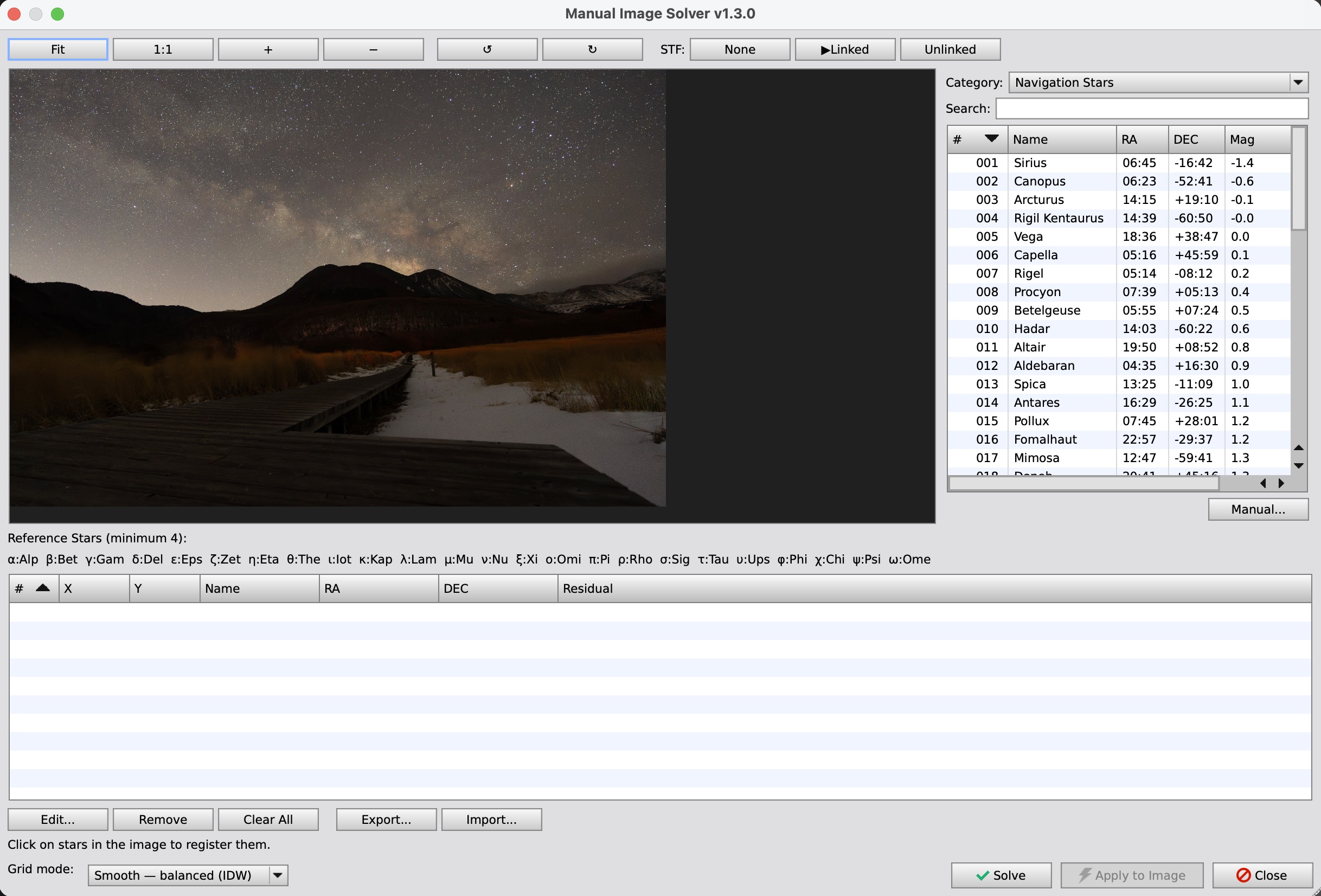
The dialog opens with a stretched preview of the image and a catalog browser panel on the right.
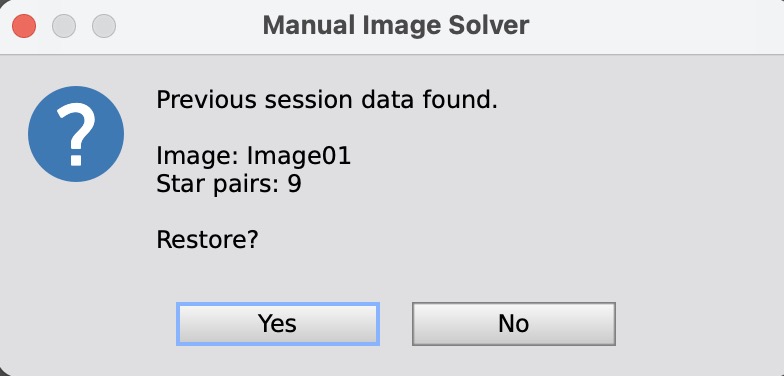
If session data from a previous run exists, a dialog will ask whether to restore it.
2. Register Stars
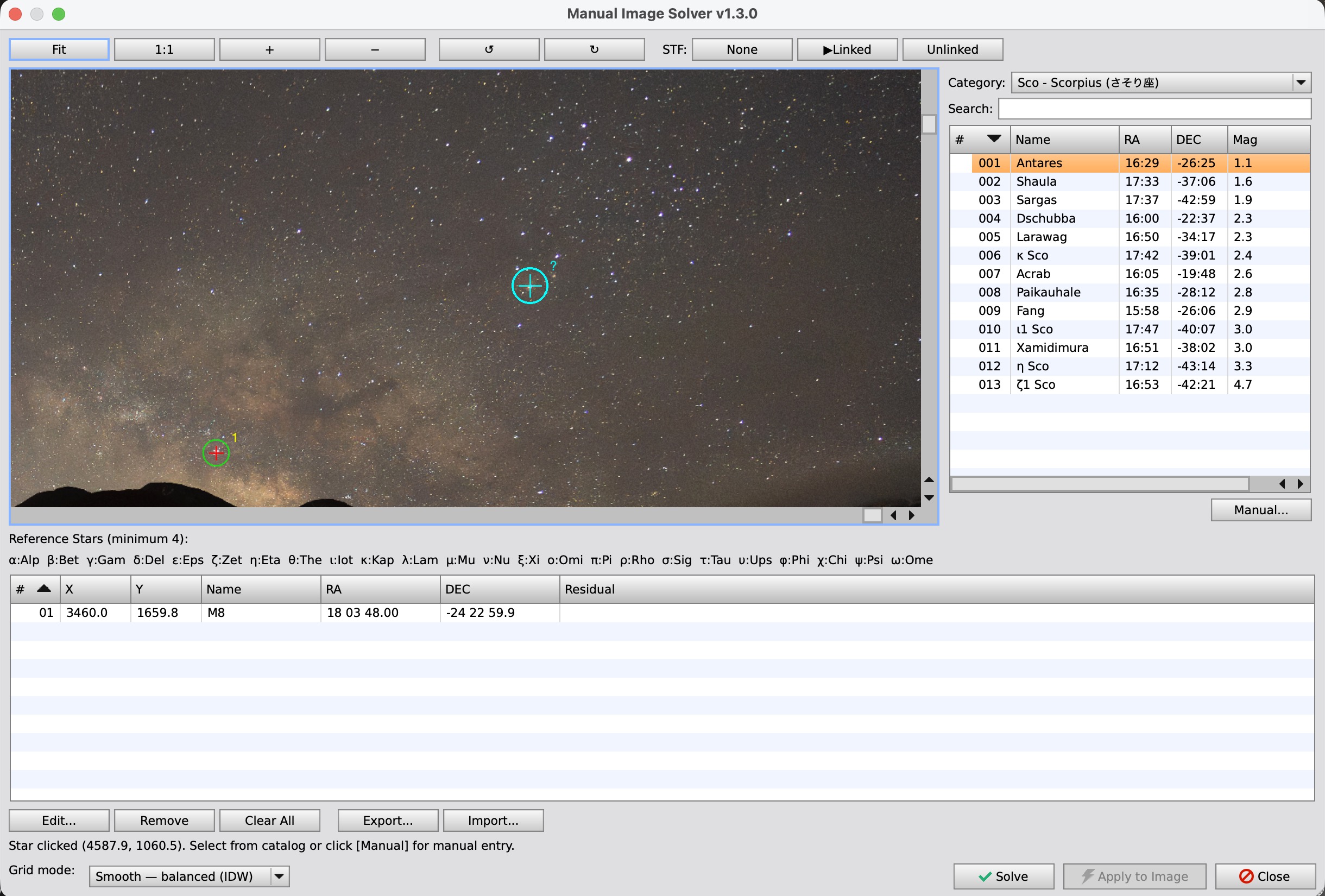
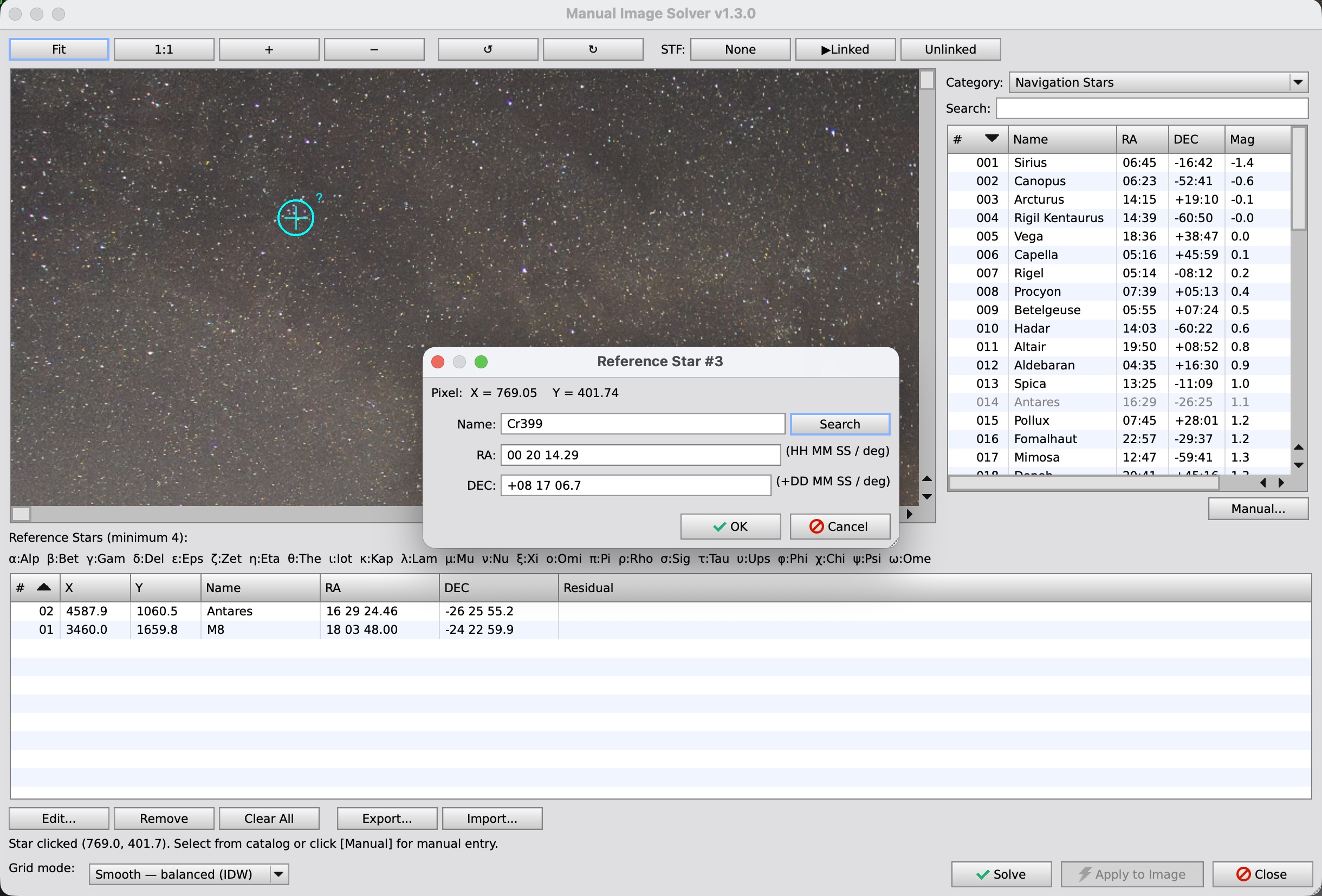
Click on a star in the image. The centroid algorithm auto-snaps to the star center, and the status bar prompts you to select from the catalog.
From catalog: Select a constellation or category from the Category dropdown, then double-click an object in the list to pair it.
The Category dropdown shows Japanese constellation names alongside Latin names for easy identification.
Manual input: Click the Manual… button to open the coordinate input dialog. Enter an object name and click Search to auto-fill RA/DEC from the CDS Sesame database. You can also enter RA/DEC directly.
Coordinate Input Formats
| Field | Format Examples |
|---|---|
| RA (HMS) | 05 14 32.27 / 05:14:32.27 |
| RA (degrees) | 78.634 |
| DEC (DMS) | +07 24 25.4 / -08:12:05.9 |
| DEC (degrees) | 7.407 / -8.202 |
3. Run Solve
Once 4 or more stars are registered, click the Solve button. WCS fitting is performed and residuals for each star are displayed. After solving, predicted catalog star positions appear as orange markers on the image, making it easy to add more pairs.
4. Apply WCS
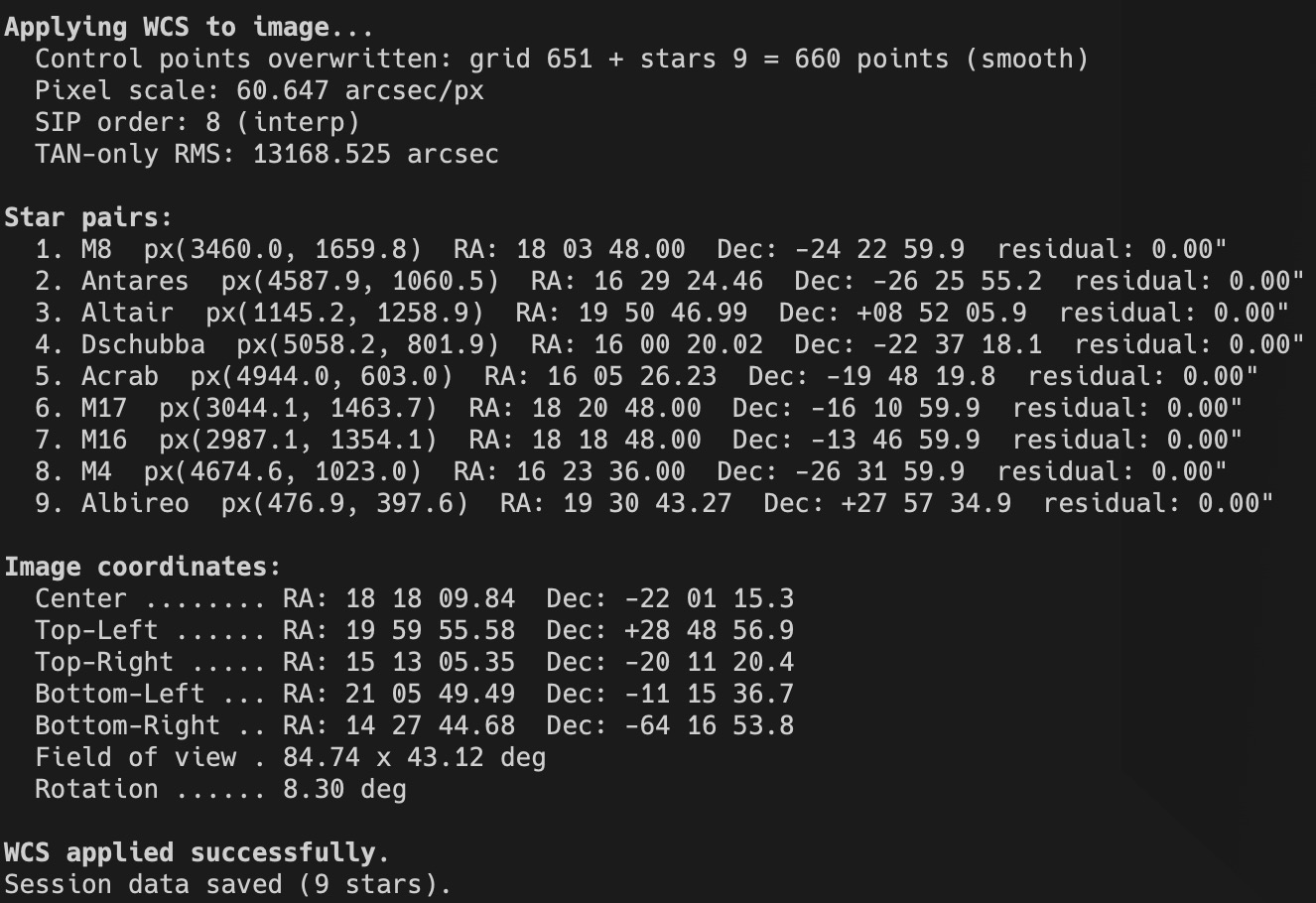
Click Apply to Image to write the WCS directly to the active image.
The Process Console displays fit details including per-star residuals, corner coordinates, FOV, and rotation angle.
Tips
- Star selection: Click on the image (auto-snaps via centroid)
- Catalog pairing: After clicking a star, double-click an object in the catalog to pair it
- Manual input: For objects not in the catalog (e.g. NGC objects), use the Manual… button with Sesame search
- Pan: Left-button drag or middle-button drag
- Zoom: Mouse wheel (centered on cursor position)
- Zoom buttons: Fit (fit to window), 1:1 (actual size), + (zoom in), - (zoom out)
- Rotation: ↺ / ↻ buttons for display rotation (useful for portrait images)
- Stretch toggle: STF: None / Linked / Unlinked buttons in toolbar
- Edit stars: Double-click a table row, or select and click Edit…
- Remove stars: Select and click Remove
- Export / Import: Save and load star pair data as JSON files